How to set a proxy server in Internet Explorer
We start with Internet Explorer because setting the proxy server in this browser affects the rest of the Windows operating system.
For example, other installed browsers like Google Chrome and Opera use Internet Explorer’s proxy settings. In Windows 10 and Windows 8.1, modern apps connecting to the internet use the same settings, and so on.
If you have Windows 10 and you do not want to use Internet Explorer, you can set the proxy server using the instructions from this guide: How to set up the proxy server settings in Windows 10. They also apply to Google Chrome, Opera, Microsoft Edge, and Firefox.
If you have Windows 7 or Windows 8.1, start Internet Explorer and go to Tools (Keyboard shortcut: Alt+X). Then, click “Internet options.”


The Internet Options window is opened. Here, go to the Connections tab and click the “LAN settings” button on the bottom.


The Local Area Network (LAN) Settings window is opened. If you are using a proxy server with a URL just like any website, check the box that says “Use automatic configuration script.” Then, in the Address field, type the URL of the proxy server.


If you want to use a proxy server with an IP address and a particular port, check the box that says “Use a proxy server for your LAN.” Then, in the Address field below, type the IP address. In the Port field, type the port that is used by the proxy server. If you are in a business network, you might want to check the box that says “Bypass proxy server for local address” so that the proxy is not used when accessing websites and services from your network and only when accessing the internet. When done setting things up, click OK in the Local Area Network (LAN) Settings window and then in the Internet Options window.
How to set proxy settings in Google Chrome for Windows
Google Chrome does not offer any unique configuration options for setting a proxy server because it uses the proxy settings found in Internet Explorer or Windows. However, you can start the setup process from Google Chrome, and it opens the Internet Options window from Windows. If you have Windows 10 installed, the fastest way to change the proxy server is to follow the instructions found in this guide: How to set up the proxy server settings in Windows 10. The proxy settings you make govern the Windows 10 operating system and installed apps, including Google Chrome.
If you are using Windows 7 or Windows 8.1, click the “Customize and control Google Chrome” button on the top-right corner of the Google Chrome window. It is represented by three dots, like in the screenshot below. Then, click Settings.


A long list of settings is opened. Scroll to the bottom and click on the link that says “Advanced” to extend this list.

The list of settings is extended. Scroll down until you find the System section. Click “Open proxy settings,” and the Internet Options window from Windows is opened.

In the Internet Options window, click the LAN settings button, from the Connections tab.

The Local Area Network (LAN) Settings window is opened. Here you can set your proxy server: you can select and use an automatic configuration script, or you can use a proxy server for your LAN and provide an IP address and port number. When you are done setting the proxy server, press OK in the Local Area Network (LAN) Settings window and then in the Internet Options window.

You proxy settings are now applied to both Google Chrome and Internet Explorer, as well as Windows apps that use the proxy settings from Internet Explorer.
How to set a proxy server in Firefox
By default, Firefox uses the proxy settings that are set in Windows or Internet Explorer. However, you can also set individual proxy settings that apply only to Firefox. To do that, click the Open Menu button in the top-right corner of the app window. It looks like three lines one on top of the other. In the menu that opens, click Options.


The Options tab is opened in Firefox. Scroll to the bottom of the page until you find a section called Network Settings. Click the Settings button found in this section.


Here you will find many proxy related options. As you can see, Firefox used, by default, the system proxy settings that you have set in Windows.

To set the proxy configuration separately, just for Firefox, select “Manual proxy configuration” and then enter the proxy configuration details. Unlike other browsers, Firefox allows you to set different proxy servers and ports for various kinds of traffic, like HTTP, SSL, FTP and so on. If you do not want to use a proxy server for specific network addresses, you can add them separated by a comma (,) in the “No proxy for” text box.

To save your settings, click OK and close the Options tab.
How to set a proxy server in Microsoft Edge
Microsoft Edge uses the proxy settings that you have set in Windows 10. To change them, follow the instructions detailed in this guide: How to set up the proxy server settings in Windows 10. However, if you want to use Microsoft Edge to access Windows 10’s proxy settings, you can do that too. In Microsoft Edge click or tap the “Settings and more” in the top-right corner of the app window. It is represented by three dots. In the menu that opens, click or tap Settings.

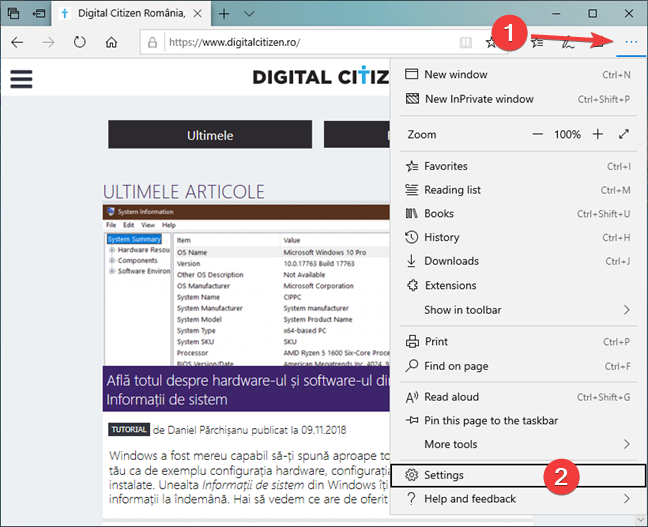
You are shown a list of basic settings for Microsoft Edge.
Click or tap Advanced in the left side of the menu, scroll down and then click Open proxy settings.
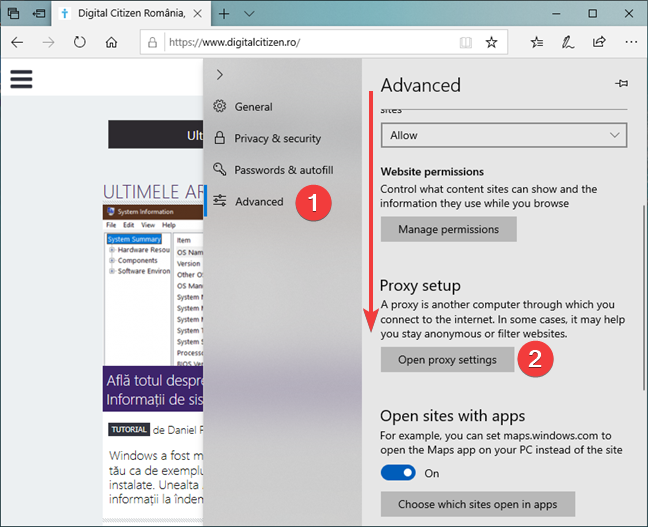
The Settings app is opened, where you can set the proxy settings that are used by Windows 10, Microsoft Edge and other installed apps.
How to set a proxy server in Opera
Like Google Chrome, Opera also does not offer any unique configuration options for setting a proxy server. It uses the proxy settings existing in Internet Explorer or Windows. However, you can start the setup process from Opera, and it opens the Internet Options window from Windows. If you have Windows 10 installed, the fastest way to change the proxy server is to follow the instructions found in this guide: How to set up the proxy server settings in Windows 10. The proxy settings you make govern the Windows 10 operating system and apps, including Opera.
If you are using Windows 7 or Windows 8.1, click the button for the menu Customize and control Opera in the top-left corner of Opera. Then, click Settings.

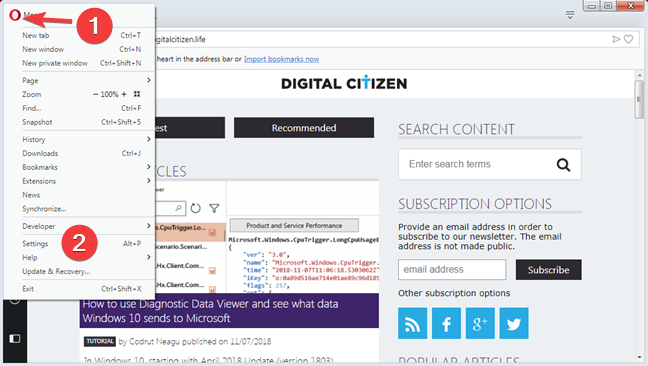
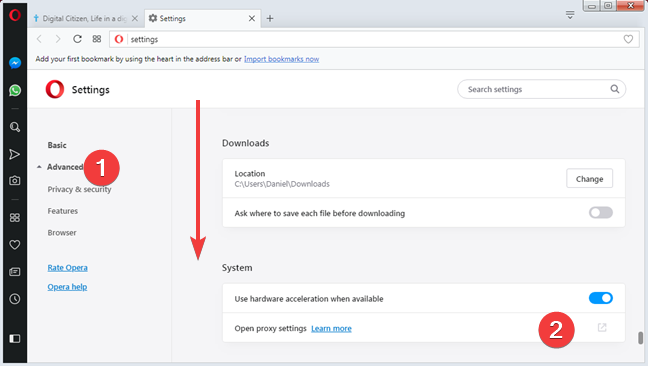
Click the Advanced section on the column on the left, to make sure that you open the advanced settings. Then, scroll until you reach the System section. To set the proxy settings, click the “Open proxy settings” line.
In the Internet Options window, click the LAN settings button, from the Connections tab.
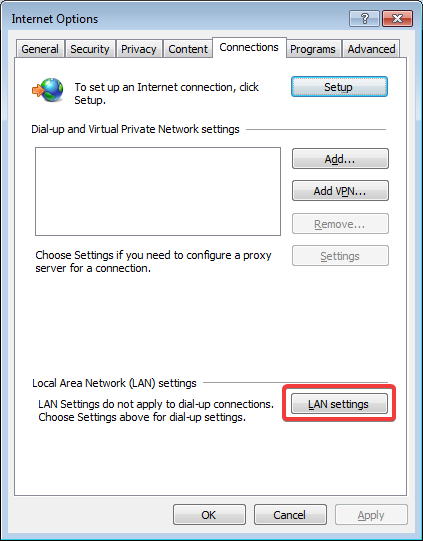
The Local Area Network (LAN) Settings window is opened. Here you can set your proxy server.
When you are done, press OK in the Local Area Network (LAN) Settings window and then in the Internet Options window.
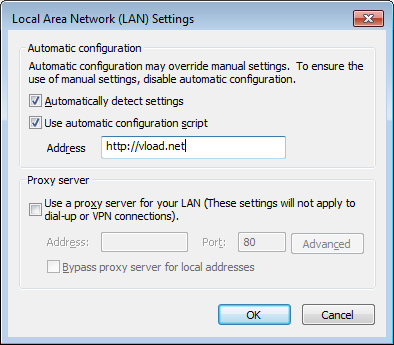
You proxy settings are now applied to both Opera and Internet Explorer, as well as Windows programs that use the proxy settings from Internet Explorer.
How to turn off the use of a proxy server
If you have changed your Windows device or you have changed the network connection so that you no longer need a proxy server, you can easily disable it.
For Internet Explorer, Google Chrome, Microsoft Edge, and Opera go to the Internet Options window, as shown in the first section of this tutorial. Then, go to the Connections tab. Here, click the “LAN settings” button on the bottom. Uncheck “Use automatic configuration script” or “Use a proxy server for your LAN,” depending on which proxy setting was used, and click OK in the Local Area Network (LAN) Settings window and then in the Internet Options window.
In Firefox, use the same procedure as for setting a proxy server. In the Connection Settings window, check “No proxy” and click OK.
If you are using Windows 10, then this guide will show you what you need to know for disabling the utilization of a proxy server:How to set up the proxy server settings in Windows 10.
What is your reason to set up a proxy server?
Now that you know how to set a proxy server in all leading web browsers for Windows, you should be able to use any browser with the proxy server you prefer.